
Sign in to Hire Or Sell and complete the organization, theme, and profile steps before you start working.
Before you start
You need a Hire Or Sell account with a verified email address. Your administrator can invite you to an existing organization. For a new account, select Sign up on the login page and follow the email verification instructions.
The screenshots use a sample organization called Northstar Studio with made-up records.
Sign in
- Open the Hire Or Sell login page.
- Enter your Email and Password.
- Select Log in.
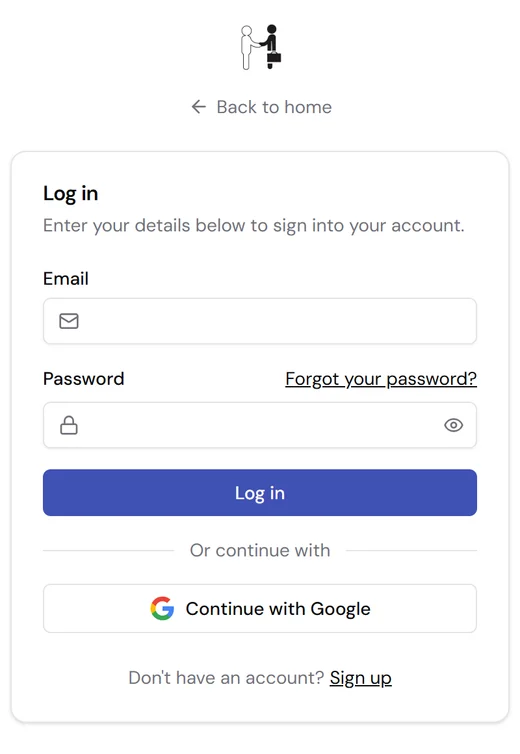
Figure 1. Enter your verified account's email and password, then select Log in.
Hire Or Sell provides Forgot your password? below the password label. Use that link when you need to reset your password.
Complete onboarding
If Hire Or Sell opens the onboarding wizard, finish these steps:
- In Organization details, enter your Organization name. Select Next step →.
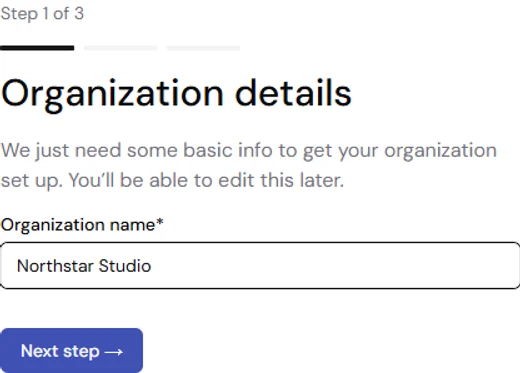
Figure 2. Use the organization name you want your team to see.
- In Choose your theme, select Light, Dark, or System. System follows your device's appearance setting. Select Next step →.
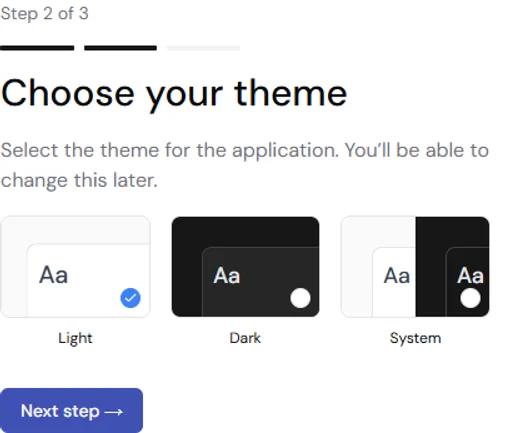
Figure 3. Choose the appearance you prefer.
- In Set up your profile, check your Name, add your Phone if needed, and optionally select the initials button to add a profile image. The email field shows the account you signed in with.
- Select Finish.
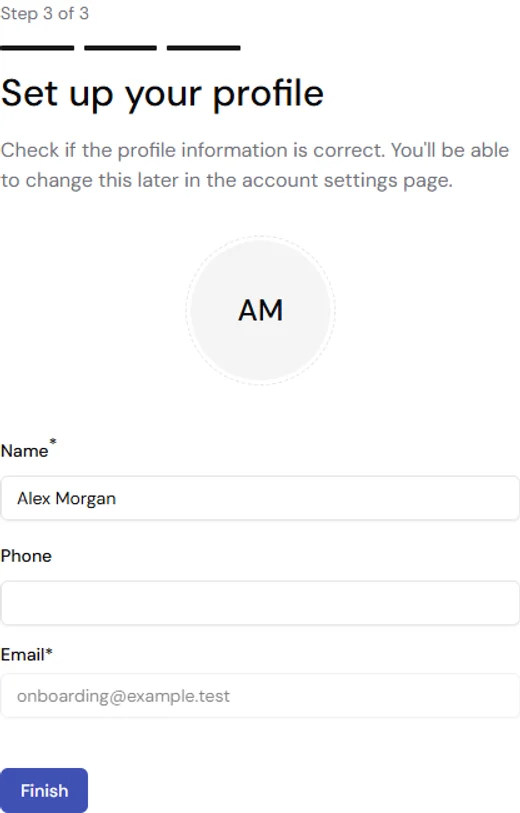
Figure 4. Confirm your profile details and finish setup.
Check the result
Hire Or Sell opens My Desk. On desktop, the left sidebar links to CRM, Clients, Projects, Timesheets, Calendar, Transactions, and other tools available to your organization.
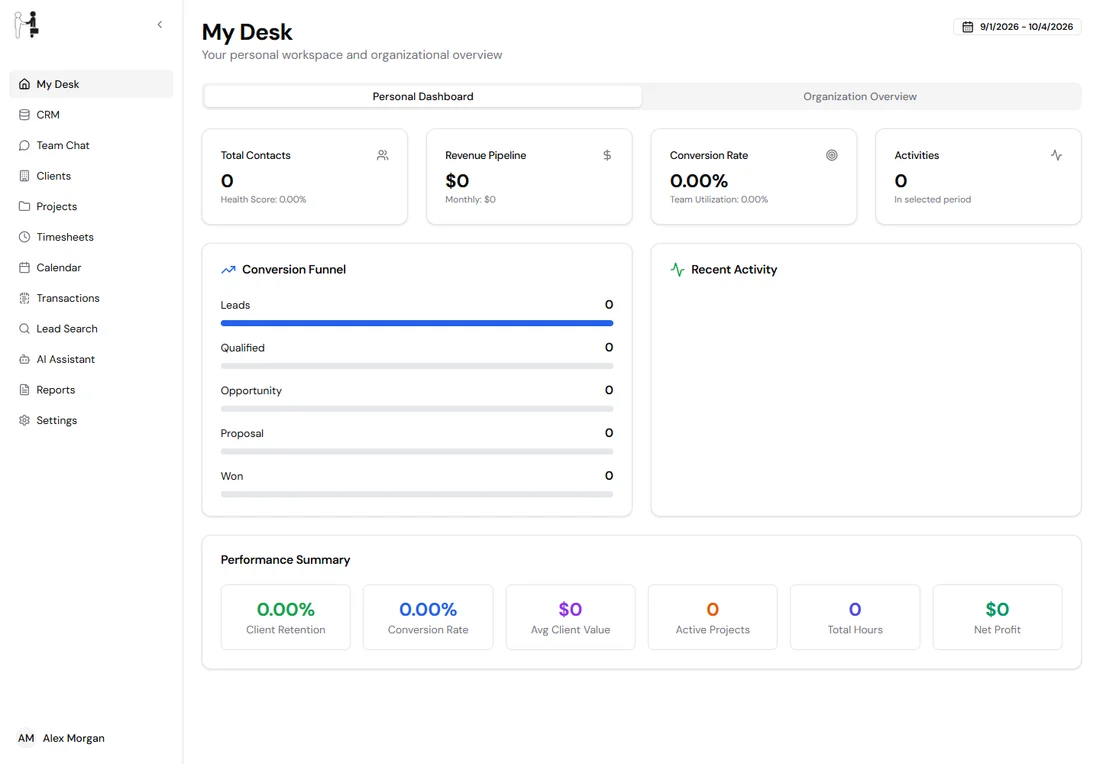
Figure 5. My Desk is the starting page after setup.
If you need to leave setup
Use Log out in the lower-left corner of the onboarding page. You can return by signing in again. Existing users who have completed setup go directly to My Desk.