
The Calendar shows your project milestones, timesheets, time entries and project meetings in one place. The pictures in this guide use example projects.
Open the calendar
Select Calendar in the sidebar. The HOS tab is your HireOrSell calendar and opens by default. The Google (Connect) tab appears when your Google Calendar is not connected yet. Selecting it takes you to a page where you can connect.
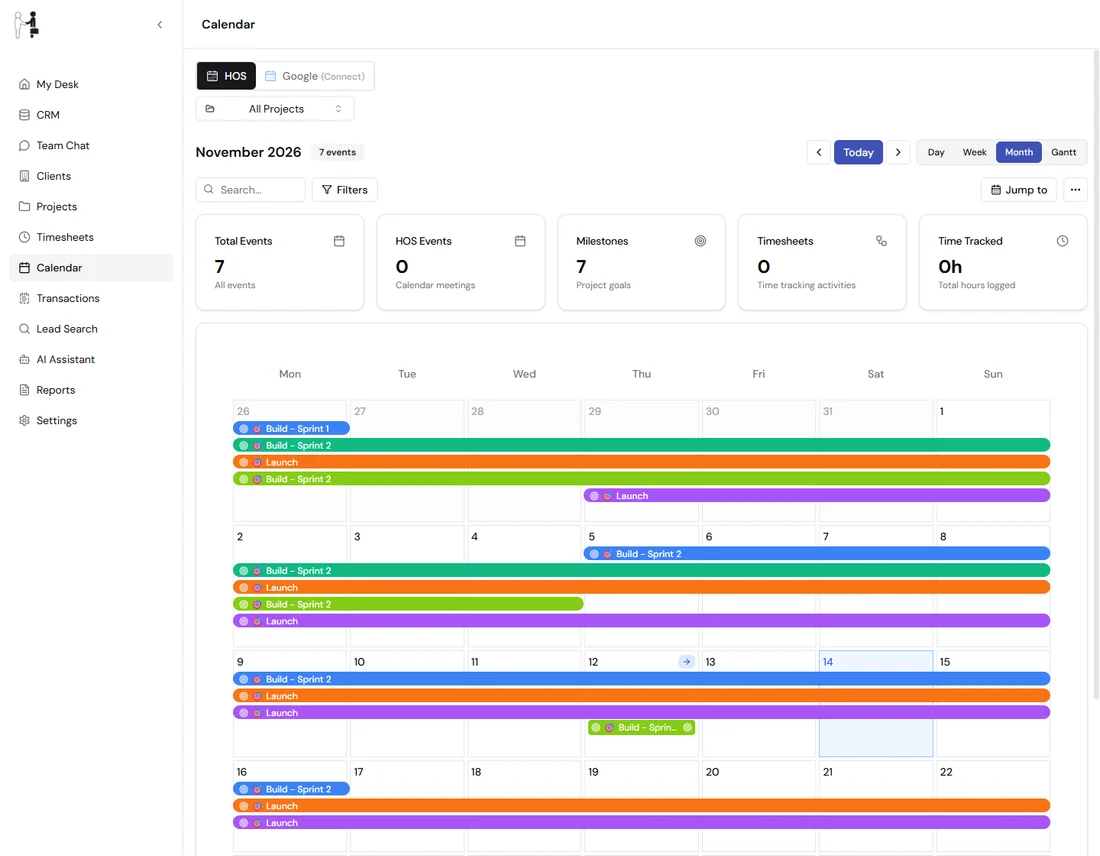
Figure 1. Milestones appear as colored bars across the days they cover.
Above the calendar you see the month, the number of events, and cards that total your events, milestones, timesheets and tracked hours.
Change what you see
- Day, Week, Month and Gantt switch the view. Choosing a view takes you back to today.
- Select the arrows to move to the previous or next period, or Today to come back.
- Jump to opens a list of months, so you can go straight to one.
- Use All Projects to pick one project. The calendar then shows only that project.
- Type in Search... to find events by title or description.
Show or hide event types
Select Filters. A check mark means that type is shown.
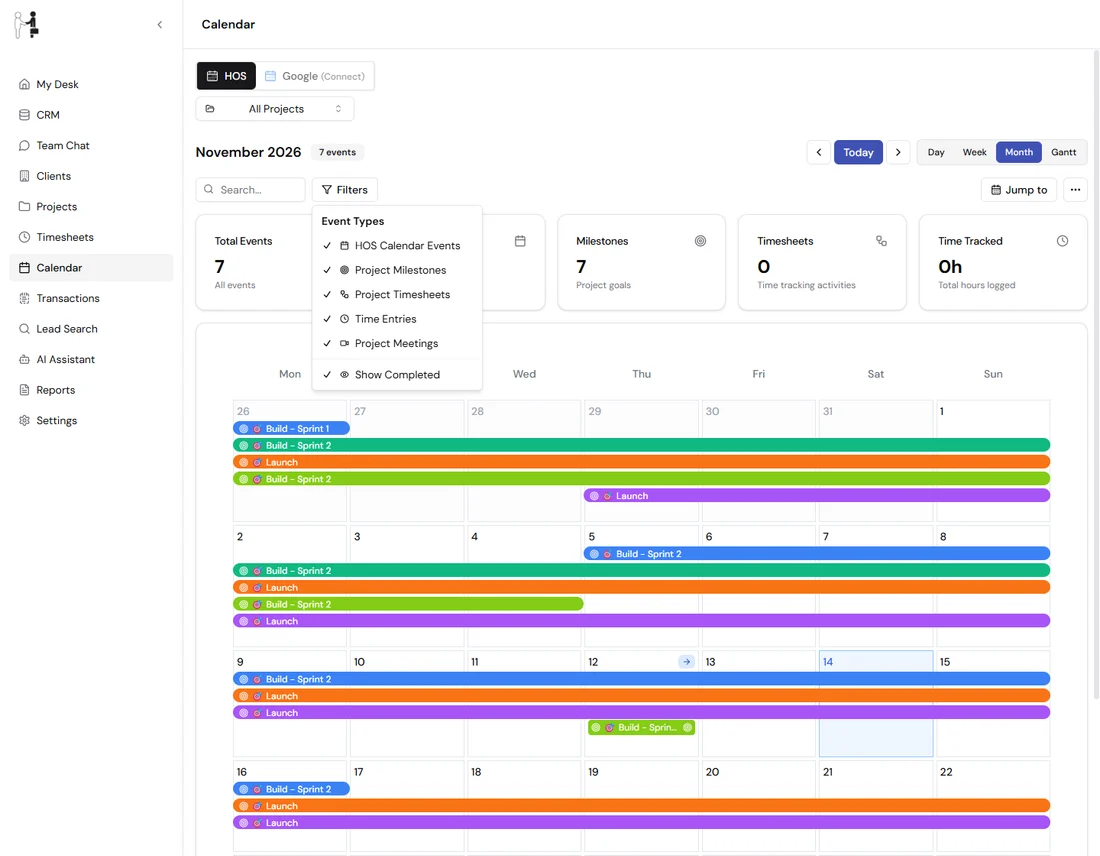
Figure 2. Uncheck a type to hide it.
The types are HOS Calendar Events, Project Milestones, Project Timesheets, Time Entries and Project Meetings. Show Completed controls whether finished milestones stay on the calendar. Your choice is remembered in this browser.
Look at one project
Choose a project in All Projects. The calendar changes to that project's milestones and meetings. Pick All Projects again to see everything.
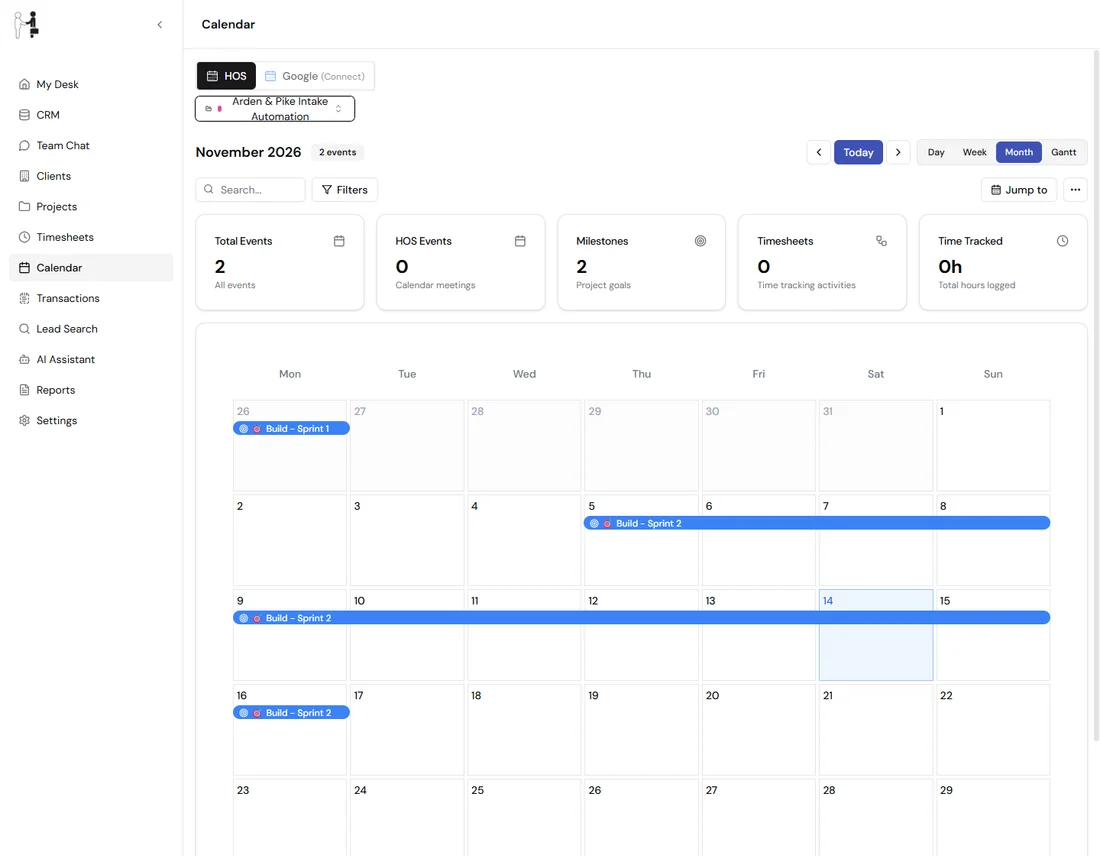
Figure 3. The project name appears in the dropdown while you look at one project.
Schedule a project meeting
You can only schedule a meeting for one project, so choose a project in All Projects first. If you leave it on All Projects, you see Please select a specific project before scheduling a meeting.
- In month or week view, double-click the day you want. In day view, select Schedule a Project Meeting.
- Enter a Meeting Title. It is required.
- Add a Description or agenda if you want one.
- Set the Start Time and End Time. The end must be after the start.
- Add a Location, such as an address or a video link.
- Choose a Meeting Color.
- Under Attendees, pick Clients and Team Members from the people who already exist.
- Select Schedule Meeting. You see Project meeting scheduled successfully.
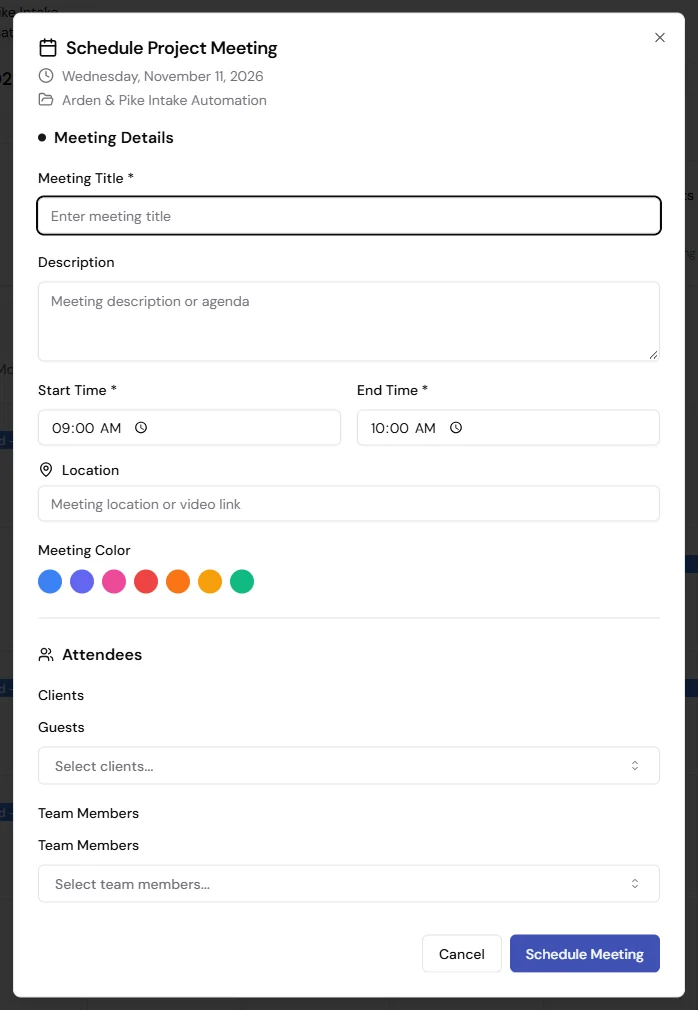
Figure 4. The window shows the day and project at the top.
If something goes wrong you see Failed to schedule meeting. Please try again. Check your details and try again.
Delete a meeting
Hover over a project meeting on the calendar. In the card that opens, select the trash button. You see Meeting deleted successfully. Only project meetings have this button. Milestones, timesheets and time entries are changed where they live, in Projects and Timesheets.
Share or export the calendar
Select the three-dot button next to Jump to.
- Share Calendar opens your device's share window, or copies the page link if sharing is not available.
- Export Calendar downloads the events you are looking at as a JSON file. It is meant for storing or processing the data, not for opening in another calendar.