
Create a HireOrSell account, verify your email, and get back in if you forget your password or lose your authenticator.
Create an account
- On the login page, select Sign up.
- Enter your Name, Email and Password.
- Check the password rules under the field. Use at least 8 characters, with uppercase and lowercase letters and a number. Passwords can be up to 72 characters.
- Select Create account.
- Verify your email (next section), then follow workspace setup.
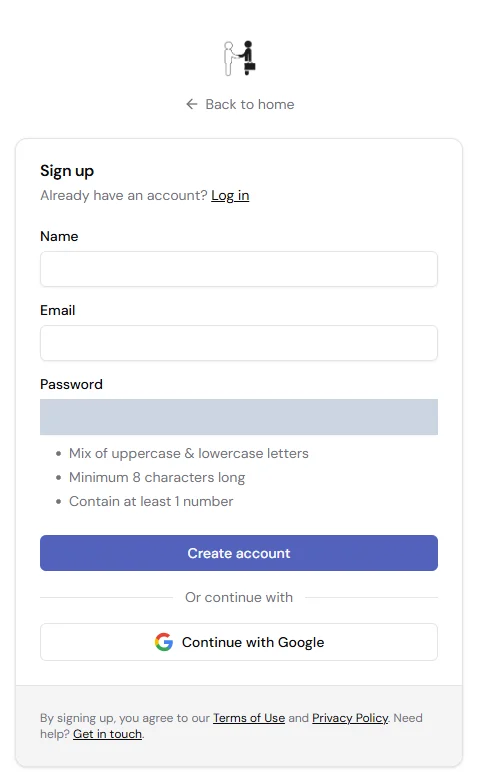
Figure 1. Use an email address you can open.
If a field is empty, HireOrSell tells you which one is required. If the email is already registered you see Email address is already taken. Go back and log in instead. Any other problem, such as a password that breaks the rules or a server error, shows An error occured during sign up. Check the password rules and try again.
Verify your email
After Create account, HireOrSell shows Please check your email. Open the link in the message, or type the six-character code into the boxes. The link and code stay valid for 30 days. The code can contain letters and numbers. When all six are entered it can submit by itself.
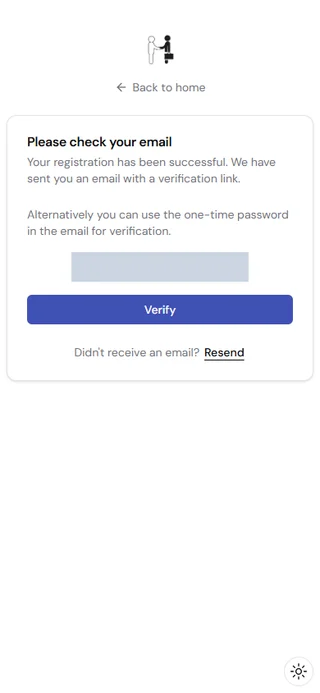
Figure 2. Enter the code from your email.
- A wrong code shows Couldn't verify email. Check the code and try again.
- To get a new message, select Resend. On the expired screen, select Resend email verification.
- If you try to log in before verifying, you see Email is not verified. Select its Verify email link to return to the form.
- When it works you see Email verified. Select Back to log in.
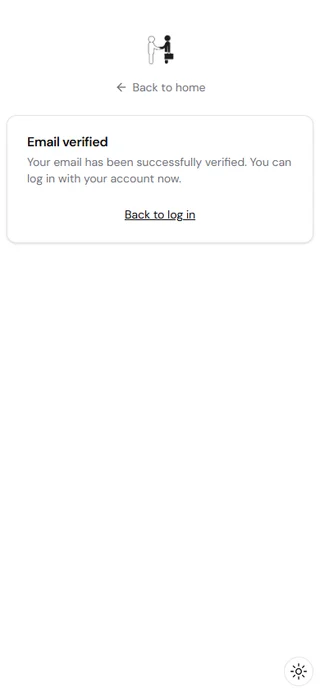
Figure 3. After this, log in with your email and password.
Reset a forgotten password
- On the login page, select Forgot your password?.
- Enter your Email.
- Select Send instructions.
- Open the link in the email.
- Enter a new password that meets the rules.
- Select Change password, then Back to log in.
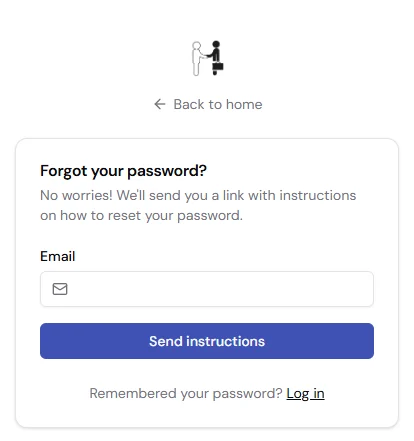
Figure 4. Enter the email address of your account.
After you send the request you see Reset instructions sent, with the address you entered. If the message does not arrive, check the spelling and your spam folder. If you see Couldn't request password change, check that you used the email of your account and try again. If it keeps happening, wait a moment and retry.
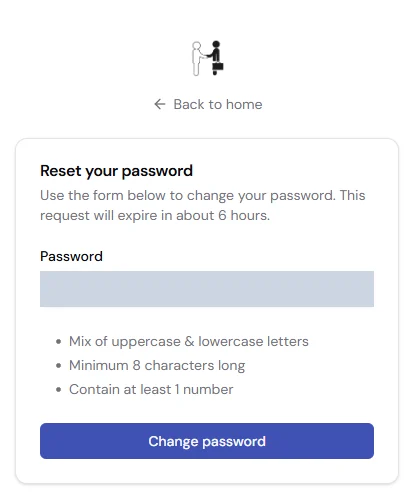
Figure 5. The page shows how long the link stays valid.
When the password is changed you see Password updated. The old password stops working.
If the link has expired or was already used you see Reset request is expired. Select Want to try again? and ask for new instructions. A link that is broken or no longer exists shows a Something's missing page. Use Go back, then start again from Forgot your password?.
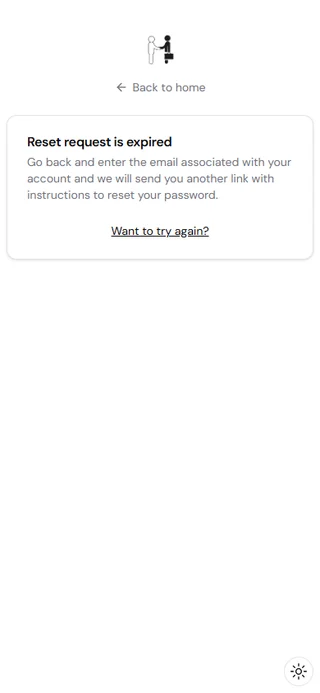
Figure 6. Ask for new instructions when a link has expired.
Sign in with two-factor authentication
If you turned on an authenticator app, logging in with your password opens Authenticator code.
- Enter the six-digit code from your app. It can submit by itself when all six digits are in.
- If you see The TOTP code is not correct., enter a new code from the app.
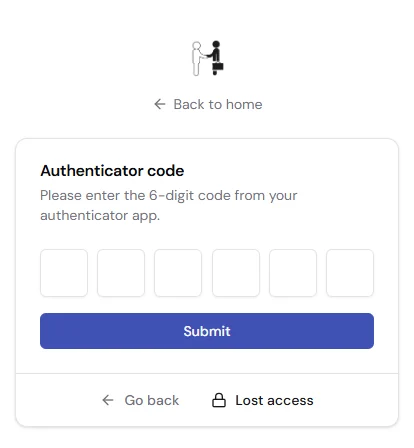
Figure 7. Enter the current code from your authenticator app.
If you cannot use your app, select Lost access and enter one of your saved recovery codes in the XXXXX-XXXXX box. Each recovery code works once. A wrong or used code shows The recovery code is not correct. Select Go back to return to the authenticator code.
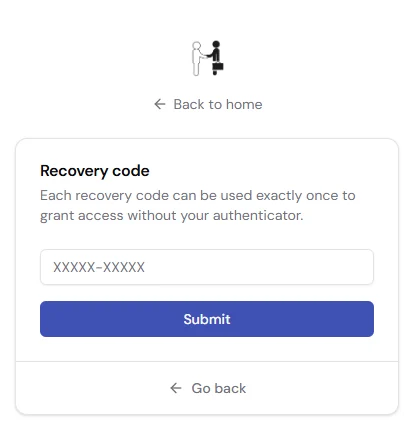
Figure 8. Use a recovery code when you cannot reach your app.
If you see Request has expired., select Log in again. and start from your email and password. If a page shows Missing token param. or Missing expiry param., go back to the login page and log in again.
You set up the authenticator and download recovery codes in Settings, Account, Security.
Sign out
Open the account menu and select Log out. HireOrSell shows that you have been logged out and takes you to the login page after a short countdown. Select Back to log in to go straight away.
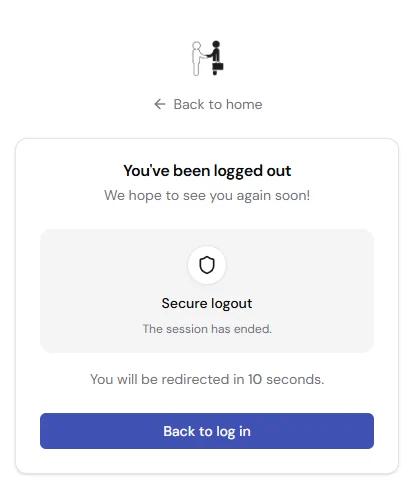
Figure 9. Your session has ended.