
Use My Desk for a summary of your work, then open a tool from the sidebar.
Open a tool from the sidebar
- Sign in and finish workspace setup.
- Choose an item in the sidebar:
- My Desk: a summary of your work.
- CRM: your contacts.
- Team Chat: chat with your team.
- Clients: your clients.
- Projects: your project list.
- Timesheets: the work records used for time tracking.
- Calendar: your meetings and milestones. If you have not connected a calendar yet, it asks you to.
- Transactions: income, expenses and invoices.
- Lead Search: find businesses to add as leads.
- AI Assistant: information about the AI assistant mobile app.
- Reports: your reports.
- Settings: your account and organization settings, such as Profile, Security, Members and Billing.
- Use the account button at the bottom of the sidebar to open your account menu.
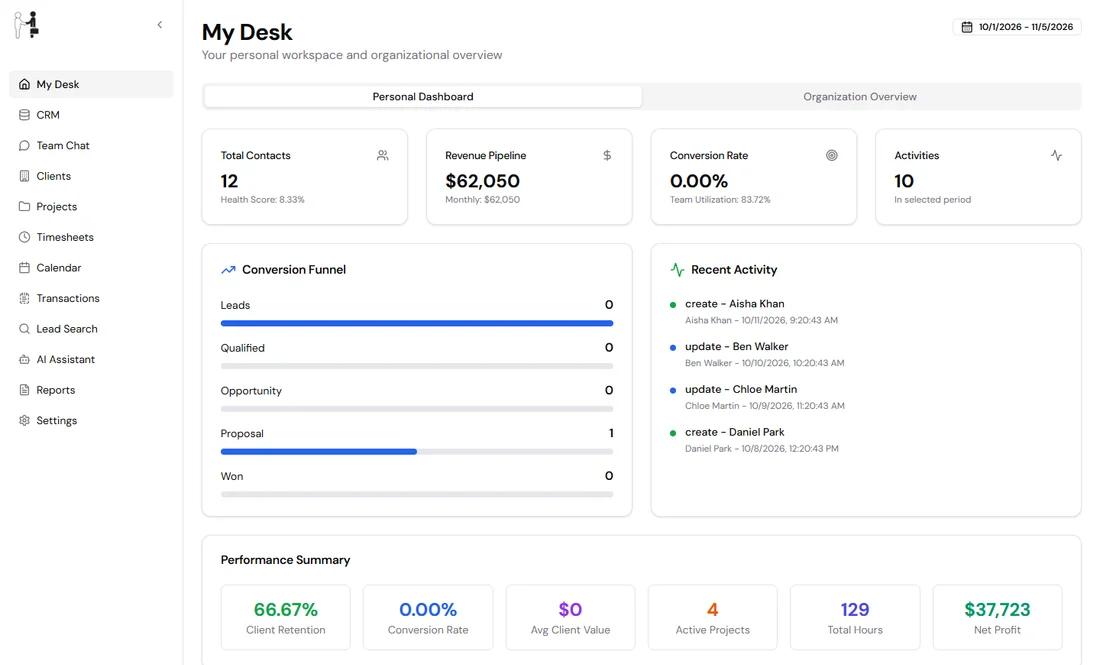
Figure 1. The sidebar lists every tool. My Desk is the first item.
Make the sidebar smaller
Select Collapse, the round "<" button beside the logo, to shrink the sidebar to icons. The button turns into a menu icon labeled Open. Select it to show the full sidebar again.
On a narrow desktop window the sidebar always shows icons only. Point at an icon to see its name.
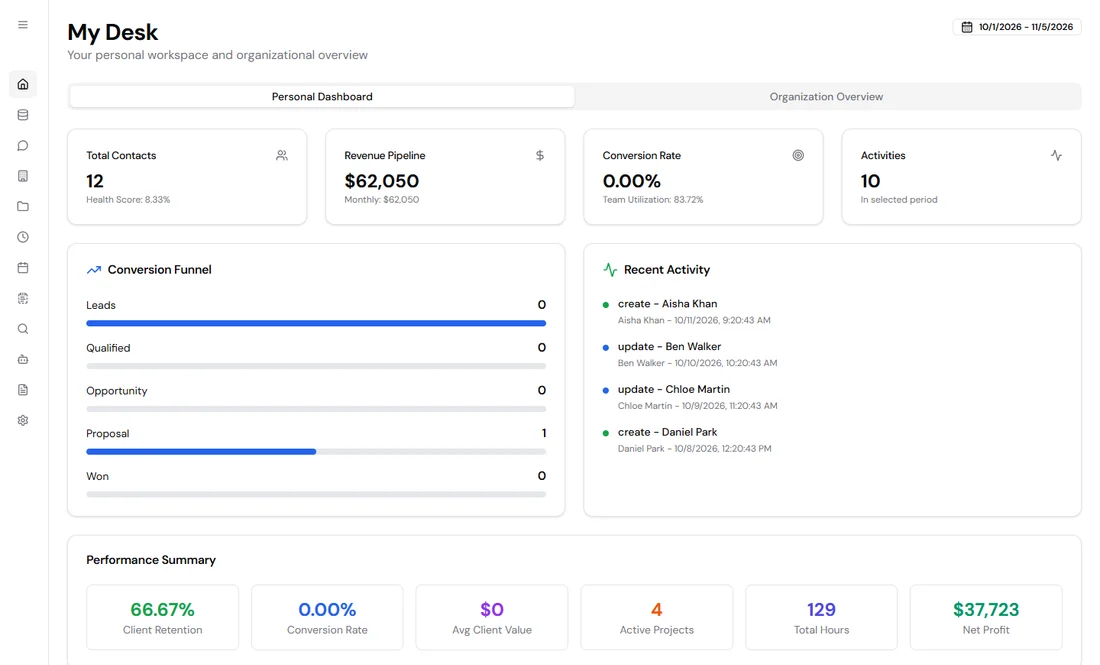
Figure 2. A collapsed sidebar shows icons only.
Choose a dashboard
Personal Dashboard shows your contacts, the revenue pipeline, conversion, recent activity and a performance summary. Organization Overview shows lead generation, your most and least visited contacts, and analytics for the whole organization.
The date at the top right of My Desk shows the period the page covers. It does not change when you pick a range below.
- Select Organization Overview.
- Choose 1d, 3d, 7d, 30d or Custom. The first four show the last 1, 3, 7 or 30 days, ending today. With Custom you pick your own dates. The page starts on 30 days.
- Select the date button to see or change the dates. A calendar opens where you pick the first and last day.
- Use the tabs inside each analytics section to change what it shows.
On a phone, the 1d to Custom choices are hidden. Use the date button instead.
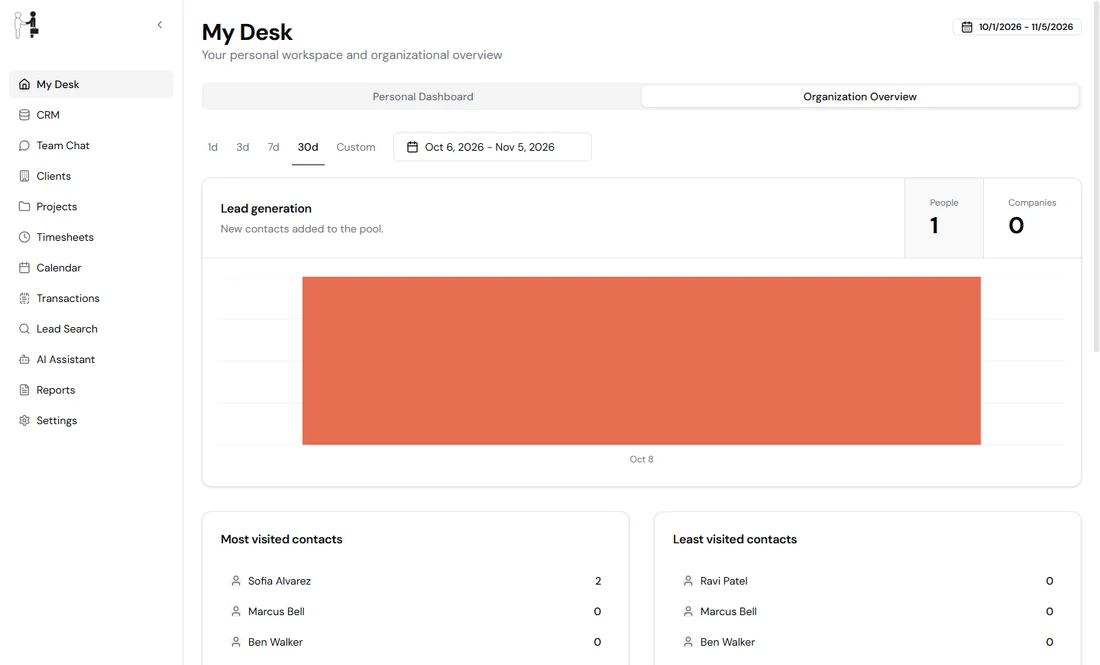
Figure 3. The date range choices sit above the analytics.
The analytics sections and their tabs are:
- Client Management Analytics: Overview, Distribution, Top Clients and Acquisition.
- Financial Analytics: Overview, Trends, History, Categories and Invoices.
- Timesheet Analytics: Overview, Project Status, Team and Profitability.
Use the account menu
Select your name at the bottom of the sidebar. The menu shows your name and email address, then these choices:
- Profile: opens your profile page.
- Billing: opens your organization's billing page.
- Command Menu: opens a box where you type to find a page or action.
- Theme: switches between Light, Dark and System.
- Visit Website: opens the HireOrSell website in a new tab.
- Log out: ends your session.
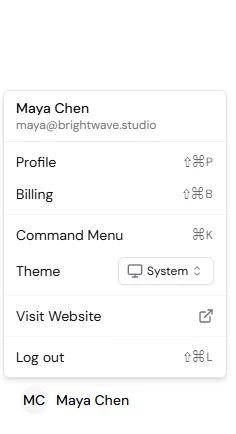
Figure 4. The account menu.
Jump to a page with the Command Menu
Press Ctrl + K (Command + K on a Mac), or choose Command Menu in the account menu. Type to search, or pick a page from the list. The list is grouped as Main Navigation, Account and Organization.
The shortcut does not work while you are typing in a field or while a window is open.
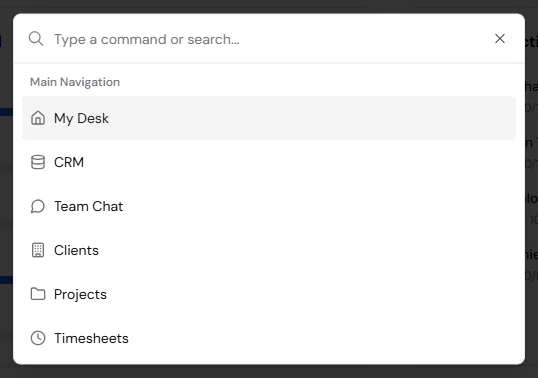
Figure 5. Type to search, or pick a page.
Use HireOrSell on a phone
On a narrow screen the sidebar is hidden. Select the menu button at the top of the page, Open navigation, to show it. Choose a tool from the list.
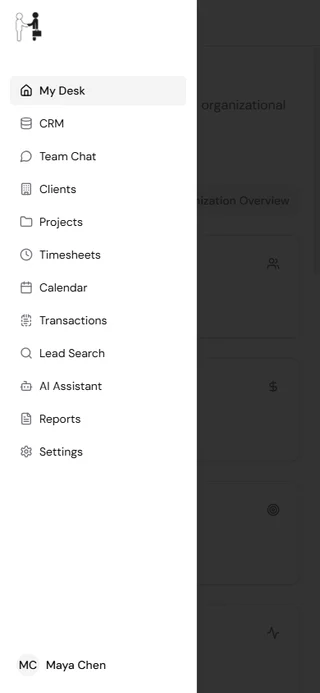
Figure 6. The navigation menu on a phone.
Tables may need sideways scrolling to reach every column and row action.
Pages that need a paid plan
Some pages need a paid plan. Transactions, Lead Search and AI Assistant need the Pro plan, and Reports needs the Enterprise plan.
When the sidebar is full size, a page your plan does not include has a lock icon, and selecting it does nothing. If you reach such a page another way, for example from the Command Menu, it tells you which plan you need, such as "Lead Search requires Pro plan or higher. Current plan: Free." Its Upgrade button opens Billing.
On the Free plan, an Upgrade to Pro button also appears at the bottom of the sidebar on a computer.
Sign out
Open the account menu and select Log out. HireOrSell shows You've been logged out and takes you to the login page after a short countdown. Select Back to log in to go straight away.