
You can use the HireOrSell website without an account. Use it to learn what the product does, compare plans, watch the product film, try a free calculator and contact the team.
Find your way around
The top of every page has Product, Resources, Pricing and Story, plus Log in and Get started.
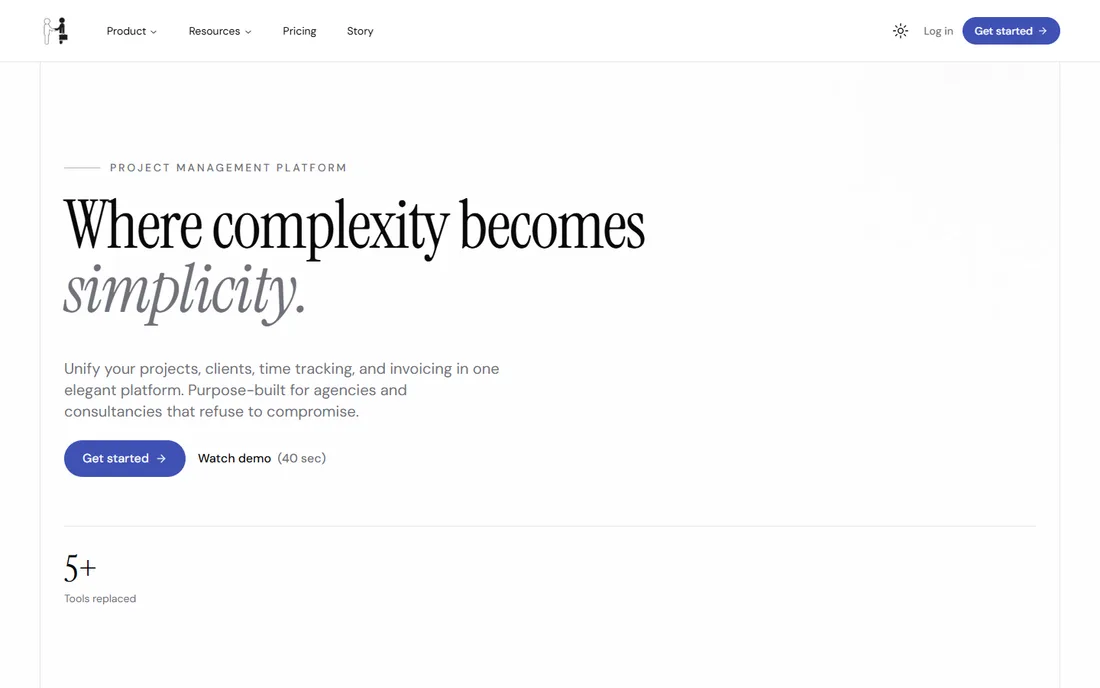
Figure 1. The home page. Get started in the header opens sign-up.
- Product lists the feature pages: Project Management, Client & CRM, Time Tracking, Financial Management and AI Assistant.
- Resources lists Book a Demo, Contact, Blog, Help & User Guides, Roadmap and FAQ.
- Pricing and Story open their pages directly.
On a phone, select the menu button at the top. Select Product or Resources to open its list, then choose a page. Start for free opens sign-up and Log in opens the login page.
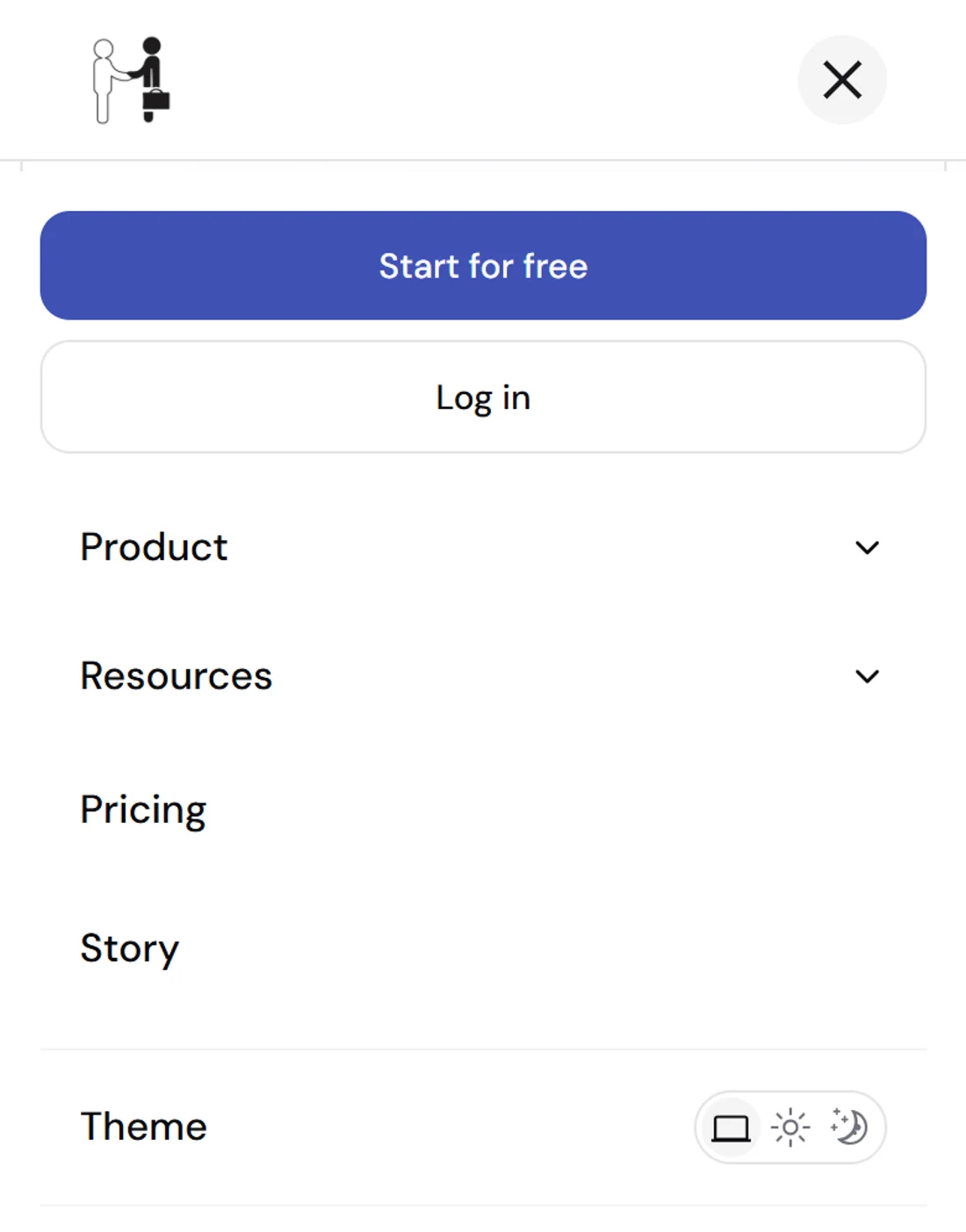
Figure 2. On a phone the same pages are in the menu. The Theme switch is at the bottom.
The footer repeats these links and adds About Us, Careers, API & Developers, Terms of Use, Privacy Policy and Cookie Policy.
Watch the product film
On the home page, select Watch demo (40 sec) under the main heading. It scrolls down to See HireOrSell in 40 seconds. Select the play button. The film starts, and you can pause it or change the volume with the controls. The film has music, so turn your sound on.
The feature pages have their own short videos under the first heading.
Compare plans
Select Pricing. The page shows the Free, Pro and Enterprise plans with their features.
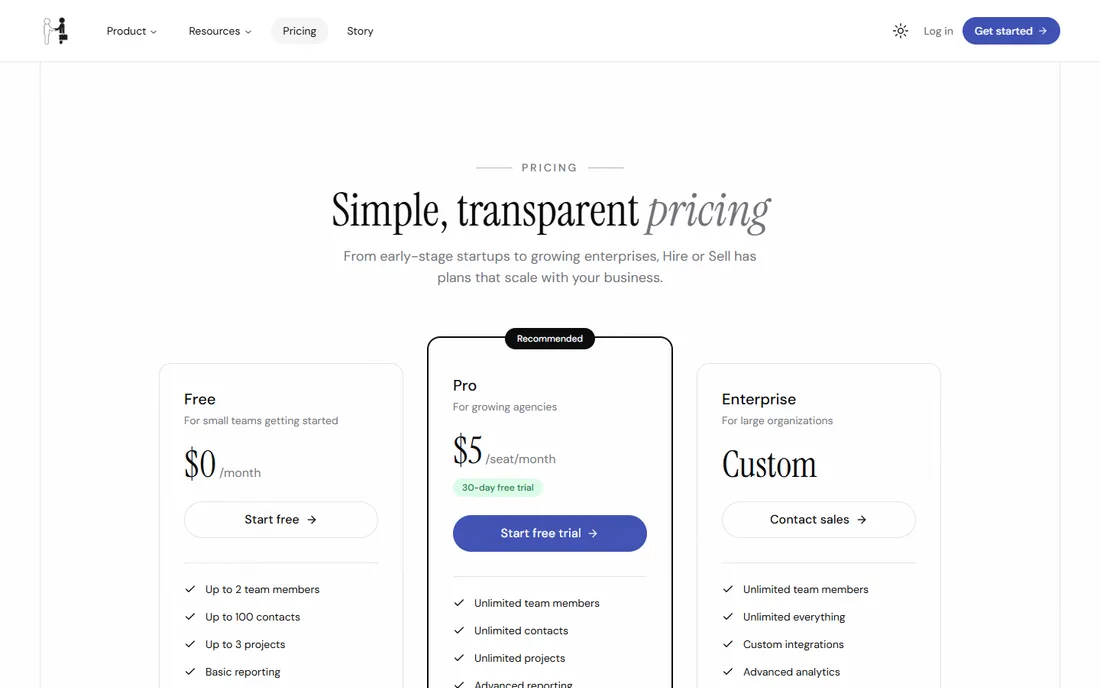
Figure 3. Check this page for the current plans and prices.
- Start free opens sign-up.
- Start free trial on Pro is a 30-day free trial. If you are not signed in, you may be asked to sign in first.
- Contact sales on Enterprise opens the contact form.
The page ends with common questions. Select a question to open its answer.
Request a demo
- Select Resources, then Book a Demo.
- Enter your First Name, Last Name, Work Email and Company Name.
- Choose a Company Size: 1-10, 11-50, 51-200, 201-500 or 500+ employees.
- Add anything you want to see in the optional message.
- Select Request demo.
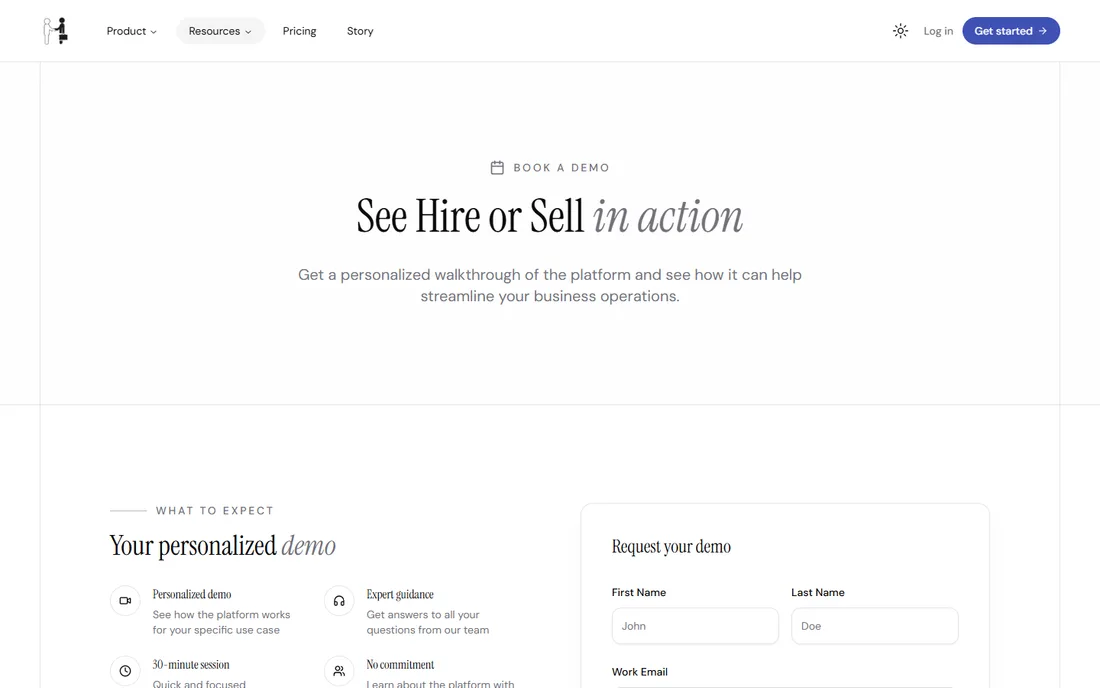
Figure 4. Every field except the message is required.
If you leave a required field empty, an error appears beside it. When your request is sent you see a thank-you message and Back to Home.
Send a message
- Select Resources, then Contact.
- Enter your First Name, Last Name, Email and Message.
- Select Send message.
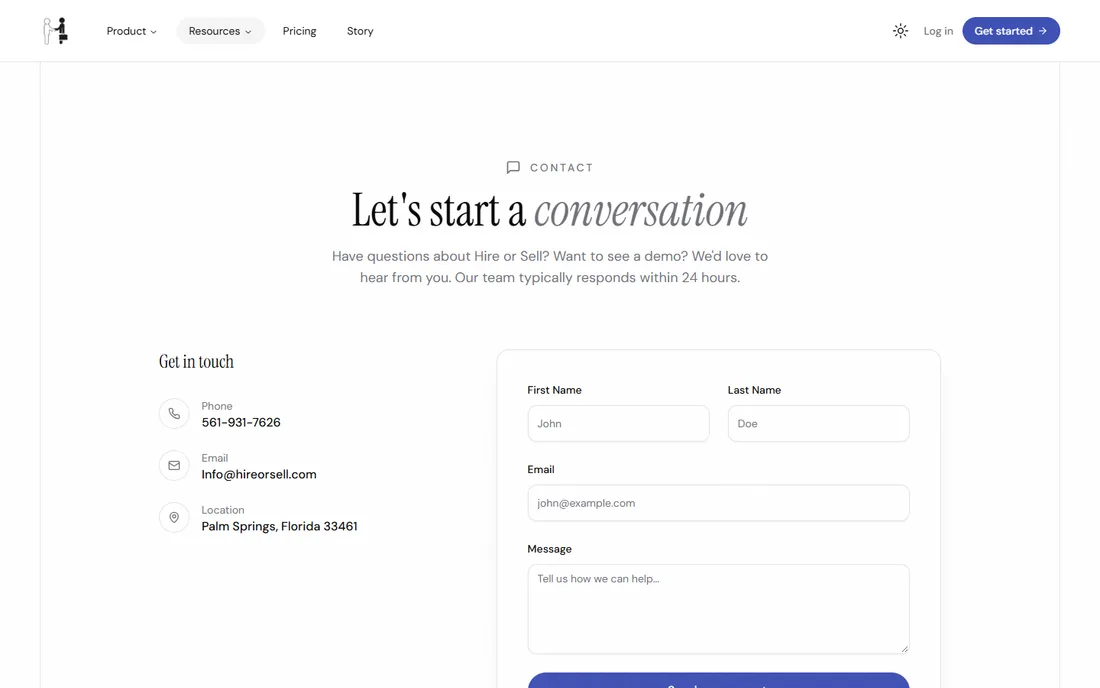
Figure 5. The team usually replies within 24 hours.
You see Thank you for your message! We will get back to you soon. when it is sent. If you see an error, check the form and try again, or use the phone number and email address shown on the same page.
Read answers and company information
- FAQ answers common questions. Select a question to open it.
- Story and About Us tell the company's story.
- Careers lists opportunities. The Apply now buttons open Contact, so say which position you mean.
- Roadmap shows what is planned and what is done.
- Blog has articles on pricing, invoicing, time and running an agency. The row of topic tabs at the top filters them, and All shows everything.
Use the free hourly rate calculator
The hourly rate calculator tells you the lowest hourly rate you need to charge to reach an income target. It needs no account. Open the hourly rate calculator.
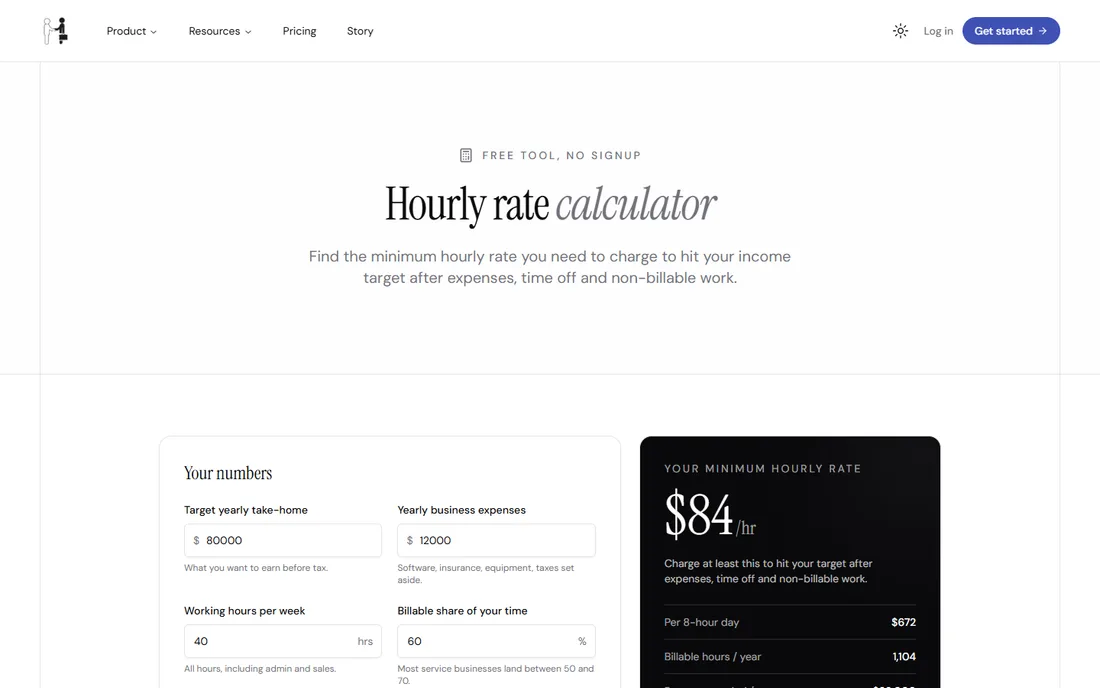
Figure 6. A take-home of 80000, expenses of 12000, 40 hours a week, 60% billable and 6 weeks off gives a minimum rate of $84 an hour.
Fill in Target yearly take-home, Yearly business expenses, Working hours per week, Billable share of your time and Weeks off per year. The result under Your minimum hourly rate updates as you type. It also shows the rate for an 8-hour day, your billable hours per year and the revenue you need per year.
Choose a light or dark theme
Select Toggle theme at the top of the page. At the bottom of the page you can choose System Theme, Light Theme or Dark Theme. System follows your device. Your choice is remembered in this browser.
Find the AI assistant app
Open AI Assistant under Product. The page links to the iOS app on the App Store. The Android app is not available yet. For setup steps, see Use the AI assistant on your phone.