
Find local businesses on Google, see which look like good prospects, and add them to your contacts.
Before you start
Lead Search is included in the Pro and Enterprise plans. It is not available on the Free plan. Results come from Google business data. The pictures in this guide use example businesses, not real ones.
Set up a search
- Select Lead Search in the sidebar.
- In Business Category, type a category such as Dentist, or select a shortcut: Education, Healthcare, Retail, Food & Dining, Professional Services or Automotive.
- In Location, enter a city, state or zip code, such as Portland, OR. Or select Add Coordinates and enter a Latitude and Longitude.
- Choose a Rating: Any Rating, 4+ Stars, 4.5+ Stars or 5 Stars.
- Choose an Open Status: Any Status, Open or Closed. It starts on Open, so change it to Any Status if you also want businesses that are closed right now. Closed shows only businesses that Google reports as closed at the moment. Businesses with no opening hours on Google are left out, so you may see fewer results than you expect.
- Select Search Leads.
If the category, or both the location and coordinates, are missing, HireOrSell asks you to fill them in.
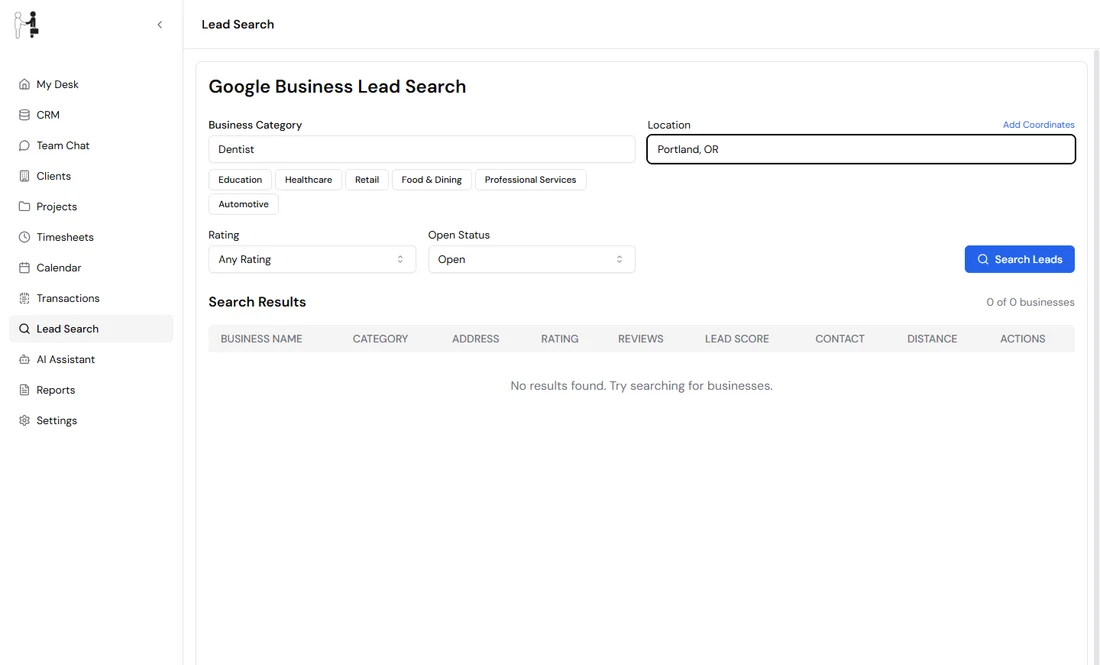
Figure 1. Enter a category and a location, then select Search Leads.
When you use coordinates, a Search Radius control appears. Choose a preset from 1 mi to 100 mi, drag the slider, or enter your own distance under Custom Range and select Apply.
Check the results
HireOrSell shows a message such as Found 5 businesses matching your criteria. If nothing matches you see No businesses found matching your criteria.
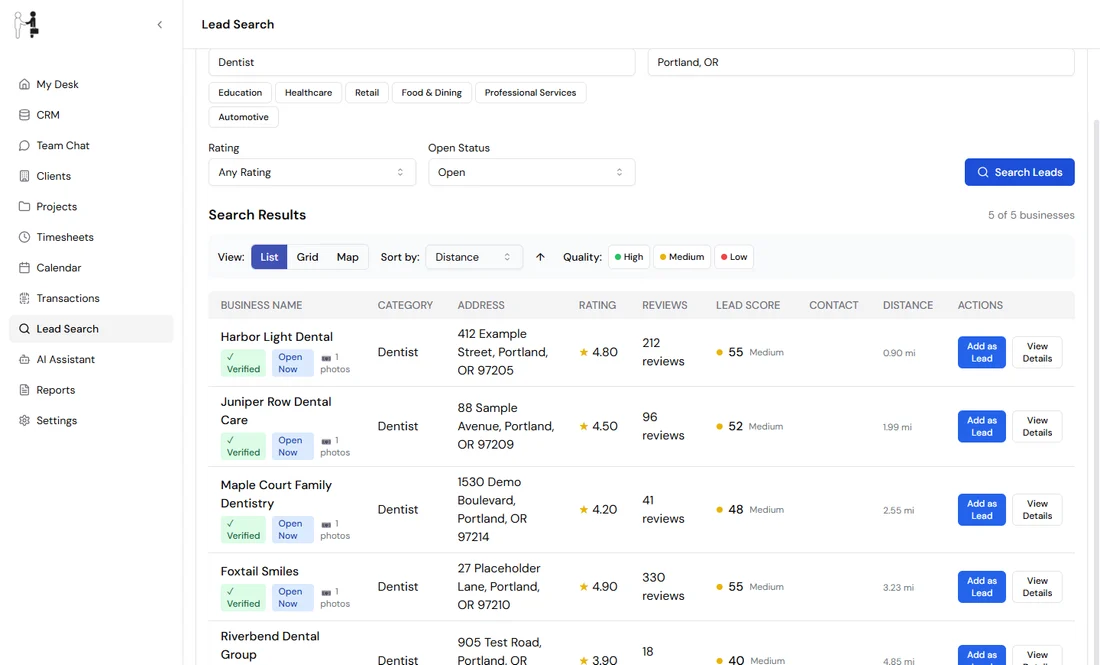
Figure 2. Example results. Each row is one business.
Each row shows:
- Business Name, with badges such as Verified (the business is operating), Open Now and the number of photos.
- Category, Address, Rating and Reviews.
- Lead Score, with a High, Medium or Low label.
- Contact: this column is usually empty. Google's search results do not include phone numbers or websites. Select View Details to see them.
- Distance from your search point.
- Actions: Add as Lead and View Details.
Results are shown a page at a time. Use Previous and Next to move between pages.
Understand the lead score
The lead score is a number from 0 to 100. HireOrSell works it out from how well-regarded a business's Google listing is: its rating, number of reviews, photos, opening hours and whether it is operating.
A score of 70 or more is High, 40 to 69 is Medium, and below 40 is Low. Because the search results do not include phone numbers or websites, which would add points, the best a business can reach here is Medium. Use it to decide who to look at first. It does not predict whether a business will buy.
Change how results are shown
- View: choose List, Grid or Map.
- Sort by: choose Distance, Rating, Reviews, Name or Lead Score. The arrow beside it reverses the order.
- Quality: select High, Medium or Low to show only those businesses. Select it again to turn it off.
When a filter hides some results, the count above the table shows how many are visible, for example 3 of 5 businesses, and a Clear Filters button appears.
Narrow the results with advanced filters
At the bottom of the page, select Advanced Filters to open more options. They work on the results already on screen, so run your search first.
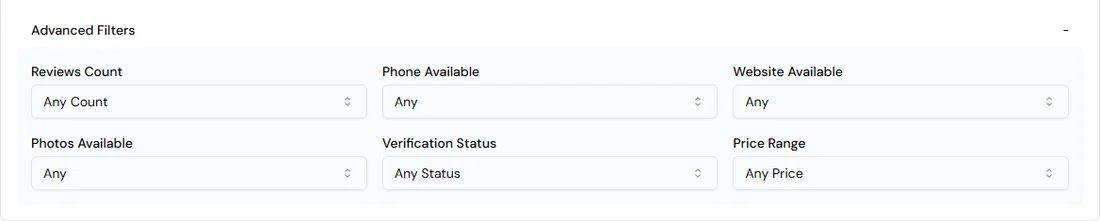
Figure 3. Advanced Filters sit at the bottom of the page.
- Reviews Count: Any Count, 0-10 reviews, 11-50 reviews, 51-100 reviews or 100+ reviews.
- Phone Available and Website Available: these only look at the phone numbers and websites already in the results, and the search does not include them. Leave them on Any, and use View Details to check a business.
- Photos Available: Any, Has Photos or No Photos.
- Verification Status: Any Status, Google Verified or Unverified.
- Price Range: Any Price, or $ to $$$$.
A number next to Advanced Filters shows how many filters are active. Select Reset to clear them.
See a business's details
Select View Details on a row. A window shows the business's Phone, Website and Hours, with an Add as Lead button. If the details cannot be loaded, you see No details available and a Try again button. Select Close to go back to the results.
Add a business as a lead
Select Add as Lead. HireOrSell shows Added "Business name" as a contact.
Open CRM to find it. The new contact is a company at the Lead stage. It has the address and phone number from Google, a note with the category and rating, and a tag named after the category. If you add the same business twice, HireOrSell shows lead is already added in contacts!
To work with the new contact, see Keep a contact's details, notes and tasks together.